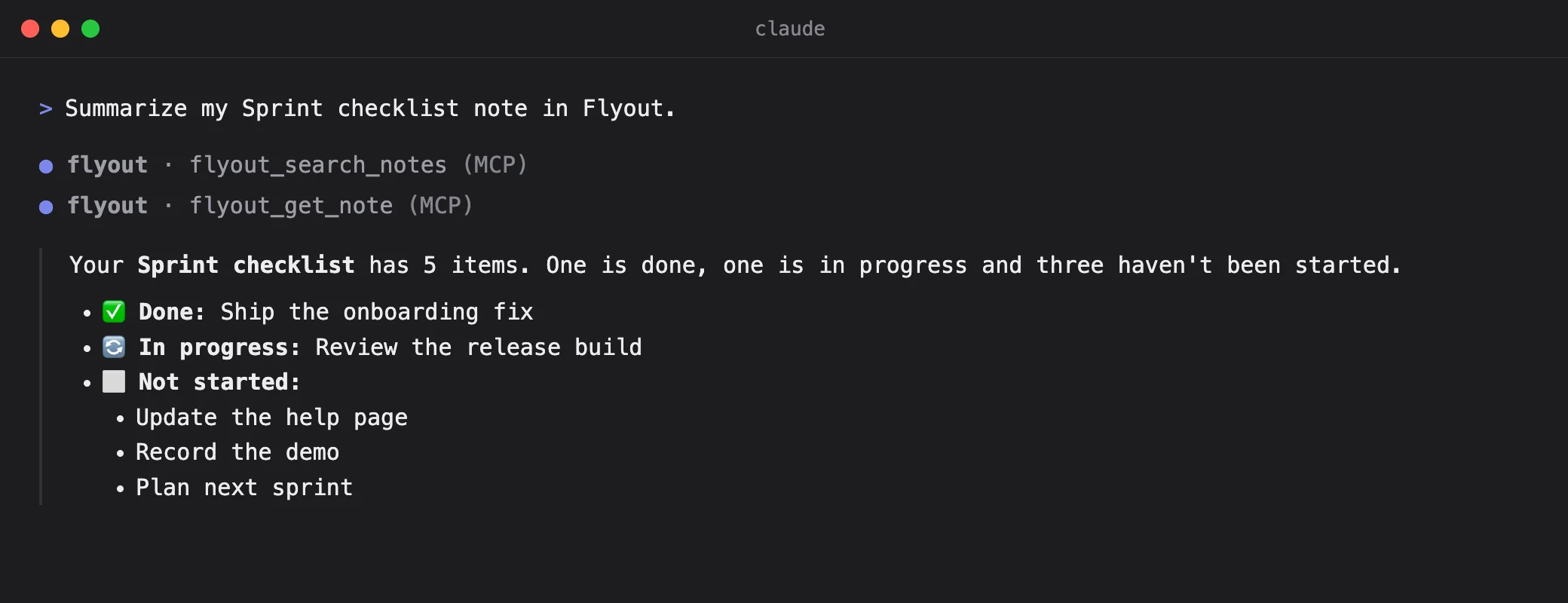
Prompt · Claude Code
Summarize my Sprint checklist note in Flyout.
Tools called
- flyout_search_notes
- flyout_get_note
Finds the note, reads it and groups the tasks by status.
 Flyout / Agent Access
Flyout connects to Claude Code, Codex and Claude Desktop on your Mac. Your AI client can search and read the notes you share, write new ones and set reminders. Access stays off until you turn it on, and every deletion waits for your approval in Flyout.
Works withClaude CodeCodexClaude Desktop

Saved in Flyout

Requires macOS 14 or later and Flyout 1.5.8 or later. The plugins are free; Flyout needs a license or the free trial.
Real prompts
These are unedited runs on a set of sample notes. The AI chooses which Flyout tools to call, and your client shows every call.
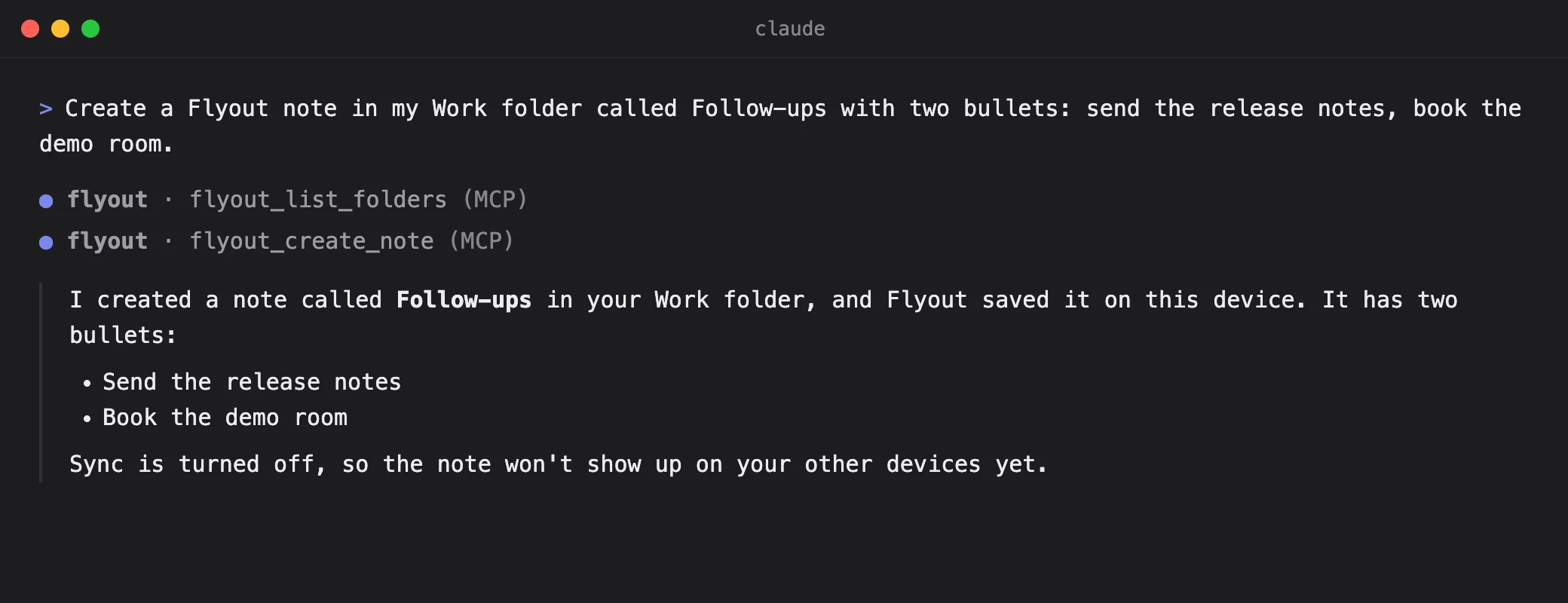
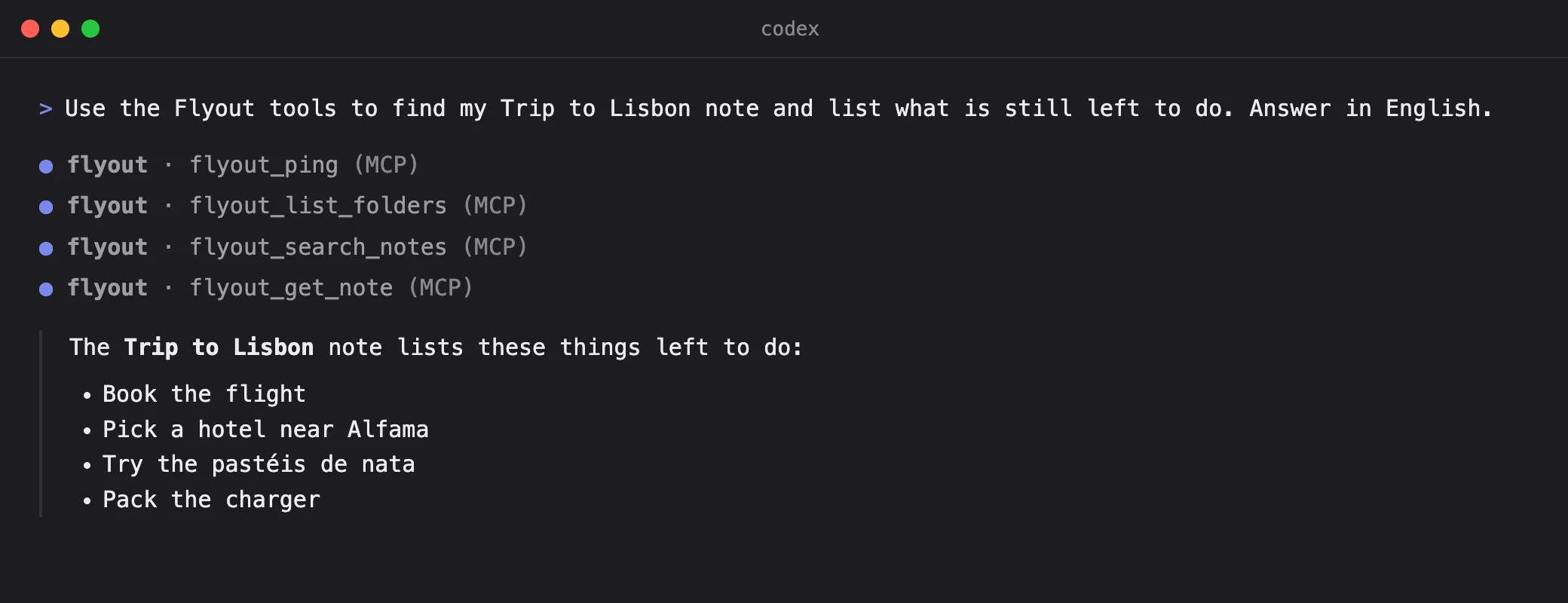
Write it in your own words and language. Each group works when the permission shown next to it is on for that connection.
Find my notes that mention the Q4 budget and summarize them.
Turn my meeting notes from today into a list of action items.
Save the decisions from this conversation as a Flyout note in Work.
Make a packing list for a three-day trip and put it in Personal.
Remind me tomorrow at 10:00 to send the release notes.
Which Flyout reminders do I have this week?
Delete my old Scratch note.
Flyout asks you to confirm. The AI client cannot approve it for you.
Setup
Add the Flyout plugin to Claude Code or Codex with two commands. Installing it gives no access yet.
Claude Code
claude plugin marketplace add gorkie/flyout-agent-plugins
claude plugin install flyout-notes@flyout-agents
Codex
codex plugin marketplace add gorkie/flyout-agent-plugins
codex plugin add flyout-notes@flyout-agents
Claude Desktop: download the .mcpb extension from the repository and install it from Settings › Extensions › Advanced settings › Install Extension.
In Flyout, open Settings › Agent Access, turn on Allow agent access and choose Add connection. Pick the client and what it may do.
In the same window, choose Pair connection. That click is your approval.


Privacy
Each connection has its own permissions. Change them at any time; the next request follows the new rules without pairing again.
Nothing connects until you turn on Agent Access and pair a client in Flyout.
Reading notes, creating notes, requesting deletion, reading reminders and creating reminders are separate switches.
Limit reading to chosen folders and pick where new notes may go. Locked notes are never included.
A delete request opens a confirmation in Flyout. Approved deletions go to the Trash, where you can restore them.
The plugin talks to Flyout on your Mac over an encrypted local connection. Notes you allow reach the AI service you use, under its terms.
Turn Agent Access off or remove the connection in Settings to stop future access.
Install the Flyout plugin for your AI client, then open Flyout Settings › Agent Access. Turn on Allow agent access, choose Add connection, pick its permissions and either All notes or Only selected folders, then choose Pair connection. Letting the connection open Flyout when it is closed is a separate choice, off by default. The Mac app and plugin must both support Agent Access; installing a plugin alone grants nothing.
Only if you allow it. A connection reads either all notes or only the folders you select; locked and trashed notes always stay out of reach. Permitted note content may be sent to the AI service you use with that connection, under that service’s own terms. Our servers do not receive the content. Turn Agent Access off or remove the connection in Settings to stop future access; content already sent to the service cannot be recalled. Deleting a note still needs separate approval in Flyout.
No. Flyout does not call a model and never asks for an API key. The AI runs in the client you already use, such as Claude Code, Codex or Claude Desktop, and reaches your notes only through the permissions you set.
Not at the moment. It can search and read notes, create new notes, list and create reminders, and ask to delete a note. It does not change or append to existing notes.
Yes, by default. You can separately allow a connection to open Flyout when it is closed; that option stays off unless you turn it on.
The plugins are free. Flyout itself needs a license or the free trial, and Agent Access works in both.
Agent Access runs through the Mac app. Notes your AI creates on the Mac reach your iPhone if iCloud sync is on.
Download Flyout, install the plugin for your client and pair it in Settings › Agent Access.
For macOS 14 Sonoma and later. iPhone app included. No account, no subscription.