Floating panel
How to keep a note on top on Mac
Use Stickies for a separate note window, or pin Flyout’s screen-edge panel to keep a checklist or reference beside your work. Here are the steps for both methods.
For macOS 14 Sonoma and later. iPhone and iPad app included. No account, no subscription.
Free option: keep a Stickies note on top
For a separate note window beside your work, start with the Stickies app included with macOS.
- Open Stickies and choose File › New Note. Write the details you need to keep visible.
- With that note selected, choose Window › Float on Top.
- Switch to your other app. Keep Stickies open; repeat the menu command when you no longer want the note on top.
Flyout uses one screen-edge panel with multiple notes. Stickies gives you separate note windows.
Keep the Flyout panel open while you work
Use this for a checklist beside a form, a booking reference or instructions you need to consult.
- Open Flyout from the screen edge or press ⌥⌘N, the default shortcut. Select a note or write in a quick page.
- Click the pushpin button at the top of the panel, labelled “Pin panel”. It becomes highlighted.
- Click your browser or another app and continue working. The pinned panel stays open.
- Click the pushpin again to release it. Move the pointer away to let the panel hide.
The star pins a note in your library; the pushpin keeps the panel open. Flyout has one panel, not a separate desktop window for each note.
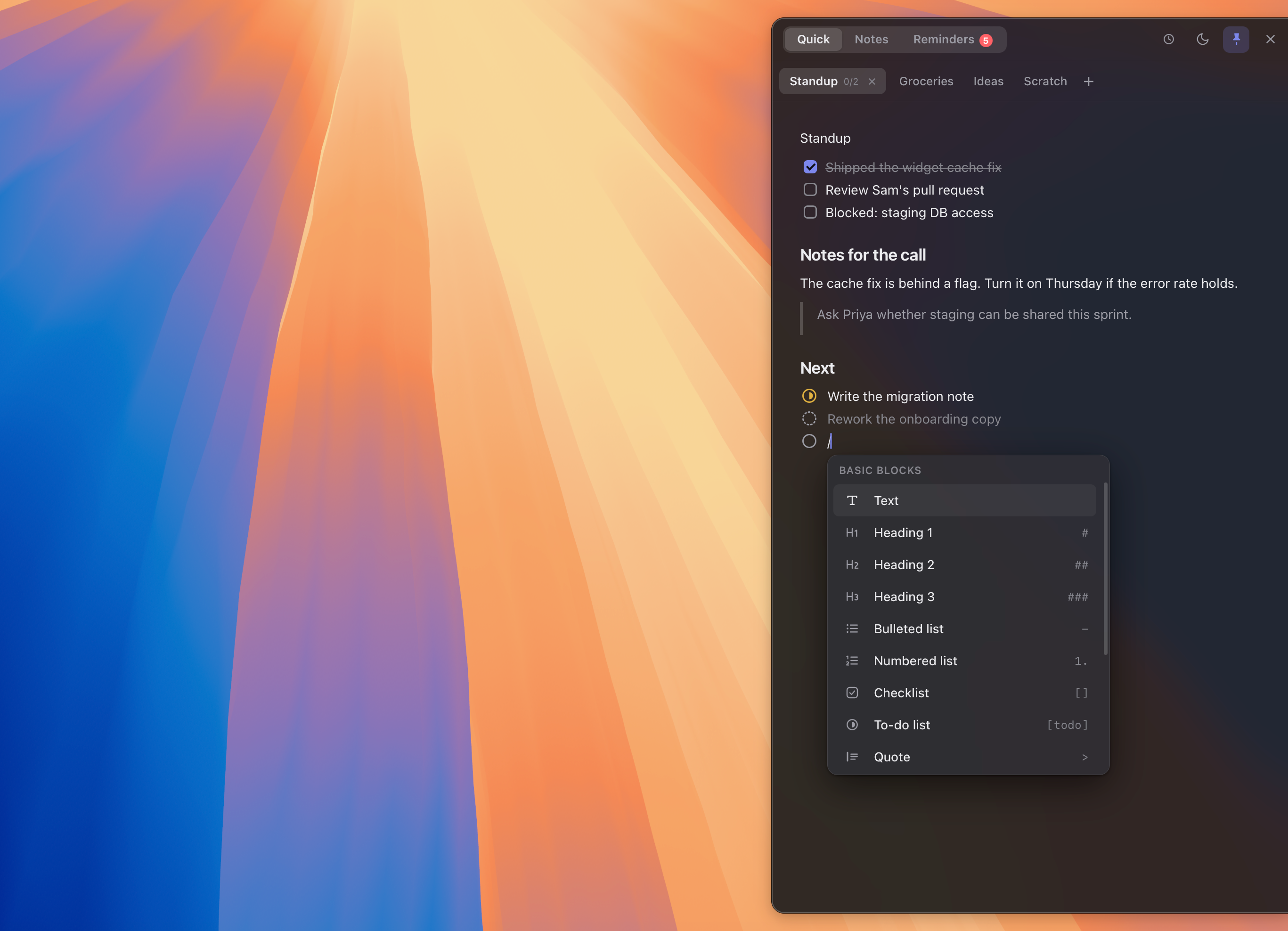
On top of any app
The panel slides out over your browser, your mail, your documents — whatever is in front of you. You read from the note and work underneath it, without rearranging a single window.
Pin it while it matters
Copying details across? Pin the panel and it stays floating until you unpin it. Unpinned, it slides back to the edge the moment you step away — no window left behind.
Track the next step inside the note
Type /todo to give each task a status, such as in progress, in review or done. Add your own statuses and keep the instructions, images and next steps together. Use /check when a simple tick box is enough.
Sprint2/6Notes- Rework the onboarding copy
- Write the migration note
- Test checkout end to end
- Tag the release
- Backport to 1.1
- Bump the version
In the note- [in-progress] Write the migration noteOn every screen you use
Working across displays? The panel opens on the screen you’re actually using, and stays on it. Your notes follow you, not the other way round.
Filter instead of hunting
One panel can hold hundreds of notes. Tag them as you write, then filter by a single tag — or several at once — and the list flattens across every folder so only the matches remain.
Questions
- Can I keep a note always on top?
- Yes — pin the panel and it floats above your windows until you unpin it. Unpinned, it hides itself when you move away from the edge.
- Does it cover my whole screen?
- No. It’s a panel along the screen edge, sized to stay readable without taking over. The rest of your work stays visible and clickable.
- Does it work with multiple displays?
- Yes. The panel opens on the display you’re working on and stays there — it won’t jump to another monitor mid-thought.
For macOS 14 Sonoma and later. One-time $24 — no subscription.
Weighing your options?See how Flyout compares