Notes on the edge of your screen.

Nudge the right edge — or press ⌥⌘N — and a full rich-text editor flies out over your work. Step away, and it slides back out of sight.

For macOS 14 Sonoma and later. No account, no subscription.

See it in action

One gesture. Code blocks, tasks, images, reminders.

Features

Fast like a scratchpad. Structured like a real editor.

Nor nudge the edge

Instant access, anywhere

Rest your pointer on the screen edge or hit the global shortcut. The panel is over your work before you finish the thought — no window management, no app switch.
Fix idea → /co

A real editor, not a scratchpad

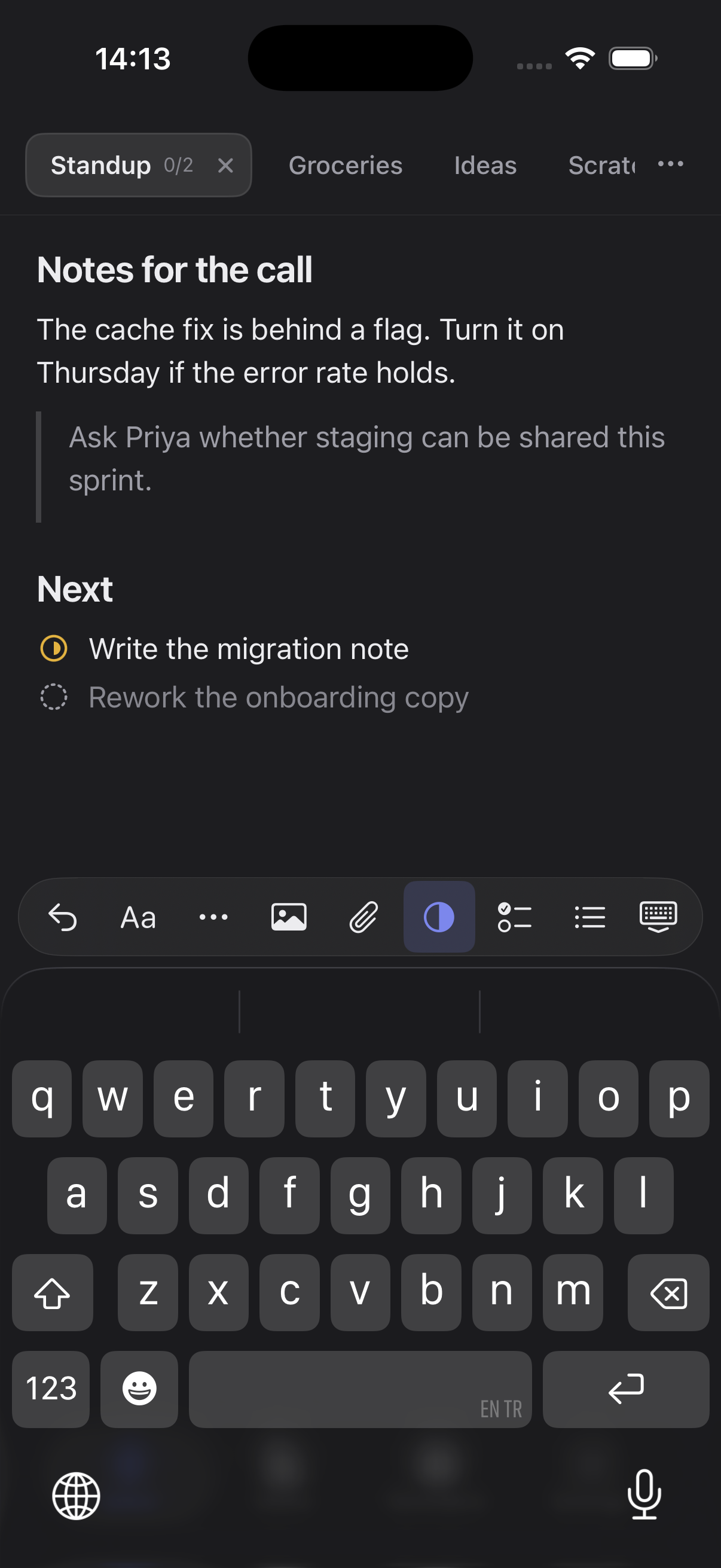
Slash commands, headings, task lists, syntax-highlighted code blocks, inline images, colour and highlight. Your notes keep the structure your work has. Every note is stored as plain Markdown on disk.

QuickNotesReminders2
Overdue
Reply to the notarization ticket9:40 AM
Today
Cut 1.0.1 with the keychain fix6:00 PM
Standup notesTue 9:00 AM
Completed
Ship the edge triggerYesterday
Auth refactor

Move token refresh out of AppDelegate — it races the keychain unlock on cold start.

Gate refresh behind keychain unlock

ReminderGate refresh behind keychain unlock
10 minutes1 hourTomorrow

Reminders that live inside the note

Set a reminder on a note — or on the exact sentence you selected. Overdue, today, upcoming and completed group into their own tab. Repeat daily or weekly, snooze straight from the notification, and click through to land back on the highlighted line.

Search
client
Acme kickoffScope, timeline, who owns what2 hours agoclientdemo
Demo scriptOpen with the screen edgeYesterdayclient
Filter by tag
client2
demo1
idea0

Tags that cut across folders

Tag a note as you write, with autocomplete against the tags you already use so “meeting” doesn’t quietly become three. Filter by one tag or several at once — the list flattens across every folder, and each tag can carry a colour.

This Mac
Auth refactor
Gate refresh behind keychain unlock
Reproduce on cold start
Up to date
MacBook Air
Auth refactor
Gate refresh behind keychain unlock
Reproduce on cold start

The same notes on every Mac

iCloud keeps every note, folder and reminder in sync across your Macs — through your own iCloud account. Nothing passes through our servers, and it all still works offline.

Weekly review
Ship the export fix, then look at2 min ago
Bank
Unlock to readYesterday

Lock a note behind a password

Some notes shouldn’t be readable by whoever opens your Mac. Lock one and its text, tags and attachments are encrypted with a key derived from your password — the plain text is deleted from disk, not just hidden from the list. Touch ID reopens it in a second; the vault closes again when your screen locks or after a few idle minutes.

And the rest of it

Everything that fits in a note

  • Any file up to 50 MB, copied into the note instead of linked to a path — so it is still there when the note reaches your other Mac.
  • Paste a table from a page or a document and it stays a table, editable cell by cell.
  • Type :shortcode: or pick from a grid — emoji without leaving the keyboard.

Stays tidy

  • Folders you drag notes into, right inside the list. Flat by design: a note is in one folder, or none.
  • Pin the notes you keep coming back to, and search the whole library from one field.
  • Find and replace inside the note you are writing — case-sensitive and whole-word matching, and Replace All undoes in one step.

Yours to keep

  • Every note is stored as plain Markdown on disk — there is no proprietary format to get out of.
  • Export a note, a folder or everything at once, as PDF, Markdown or plain text.

Part of macOS

  • Native AppKit and SwiftUI, notarized, running on Apple Silicon and Intel — not a web app in a wrapper.
  • Keep a note on your desktop with a widget that opens straight into it.

Why Flyout

Close at hand, and still a real editor.

You already have somewhere to put a note. The problem is what happens to it there.

An ordinary notes app

Rich enough — in another app, behind your editor, in a window you have to go find. By the time you dig it out, the thought’s gone.

A scratchpad

Instant — and flat. The task list is just dashes, the screenshot never fit in the first place, the code loses its highlighting.

Flyout

As fast as a scratchpad, with an editor that holds task lists, images, reminders and real code blocks — one gesture away from any app.

Mobile app

The same notes, in your pocket.

A note you write on the Mac will open on your iPhone, and a line you catch on the phone will be back on the Mac — same iCloud account, same editor. Quick notes, the library, reminders and tags will all be there.

Coming soonWe’ll announce it in the release notes when it ships.

The same notes, in your pocket.

Pricing

One price. Yours for good.

Lifetime license
$18$24launch price

Launch pricing ends 30 September 2026 — the list price is $24.

  • Reminders on any note — or an exact line
  • Folders you drag notes into
  • Code blocks, tasks, images and Markdown
  • iCloud sync across your Macs
  • Works offline — no account, everything on your Mac
  • Lifetime license — the app is yours
  • Use on 5 Macs · every future update to the Mac app
No renewal fee and no card on file — new versions arrive through the built-in updater.

Questions

Is there an iPhone app?
Flyout for iPhone is in development and not on the App Store yet. When it ships it will use the same iCloud account: a note you write on the Mac will open on the phone, and a line you catch on the phone will be back on the Mac. The licence here covers the Mac app; the iPhone app will be offered separately on the App Store.
Does it sync between Macs?
Yes. iCloud sync keeps your notes current across your Macs. It runs on your own iCloud account — nothing passes through our servers, and everything still works offline.
Can I lock a note with a password?
Yes. Locking a note encrypts its text, tags and attachments with a key derived from your password, and the plain text is removed from the database rather than just hidden from the list. Touch ID reopens it; the vault relocks when your screen locks or after a few idle minutes. Locked notes are left out of exports, the widget and the copy commands. Flyout cannot reset your password — setup gives you a recovery code once, and that code is the only way back in if you forget it.
Can I organise notes into folders?
Yes. Folders fold open right inside the notes list — drag a note onto one to file it, drag it back out to unfile it. They are flat by design: a note lives in exactly one folder, or none. Nesting is not supported. Tags cut across them: tag a note and filter the library by one tag or several at once.
Can I attach files to a note?
Yes — any kind of file, up to 50 MB each. The file is copied into the note rather than linked to a path on disk, so it is still there when the note syncs to your other Mac, and when the original is moved or deleted. Click a file to open it in its usual app, or right-click to save a copy. Files with an extension macOS can execute are revealed in the Finder instead of opened, since a note can arrive from another device.
Can I get my notes out?
Yes. Export a note, a quick page, a folder, or your whole library, as PDF, Markdown or plain text. Markdown exports carry images and attachments into an assets folder next to the file, with the links rewritten to point there — so the export opens correctly in any editor, not only in Flyout.
Which macOS versions are supported?
macOS 14 Sonoma and later, on both Apple Silicon and Intel.
Is it a subscription?
No. You pay once and the Mac app is yours, including every future update to it. There is no renewal fee and no card is kept on file.
Do reminders need an account?
No. Reminders are scheduled through the macOS notification centre on your own Mac. Nothing about a note or its reminder ever leaves the device.
How many Macs can I use it on?
Five at a time. If you replace a machine, release its seat from Settings and activate the new one — the license stays yours.
What kind of app is Flyout?
Flyout is a native macOS menu-bar app: an always-available rich-text note panel that slides out from the edge of your screen. It is built for developers and anyone who writes — with code blocks, task lists, reminders and Markdown, one gesture from any app.
Is there a notes app that slides out from the screen edge on Mac?
Yes — that is exactly what Flyout does. Nudge the right edge or press ⌥⌘N and a full editor flies out over your work, then slides away when you step back.
I already use Raycast — do I need Flyout?
They do different jobs. Raycast Notes is a scratchpad built for capture: one text-only note at a time, in a window you dismiss. Flyout is built for the note that stays open beside your work — tabs and folders, images, code blocks, and reminders you can pin to a single line, syncing through your own iCloud. If you only jot and move on, Raycast Notes is enough and you have already paid for it. If notes live next to your work, that is the job Flyout does — there is a full, honest comparison on our compare page.